
Guide: Firmware Recovery for SM2258XT SSD Controllers
Warning: This process involves a "Factory Reset" of the controller. All data on the SSD will be permanently erased.
Phase 1: Hardware Preparation
Enter ROM Mode: Locate the two jumper pads (Service Mode) on the SSD PCB. Use a conductive tool or jumper wire to bridge these pads.
Connect the Drive: While maintaining the bridge, connect the SSD to your computer. (An eSATA or direct SATA connection is recommended over USB for stability).
Verify Connection: Open Disk Management or Device Manager to ensure the drive is recognized as a generic "SMI Factory" device or similar.
Phase 2: Identifying the NAND Flash
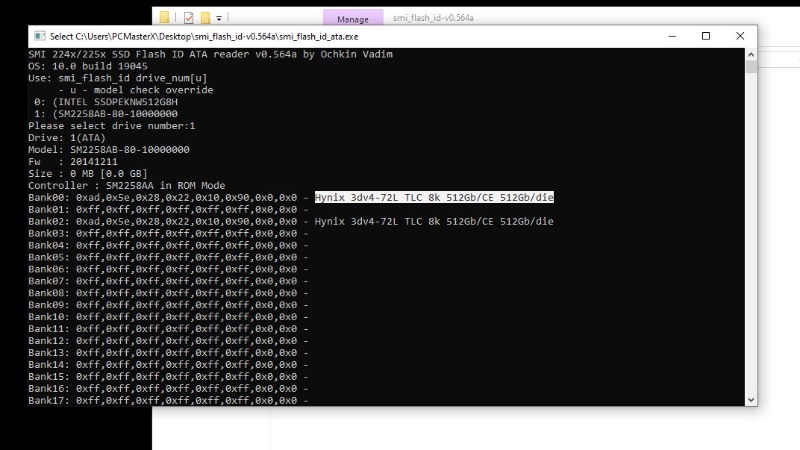
Run SMI Flash ID: Launch the SMI Flash ID utility.
Identify Memory: Note the exact NAND configuration (e.g., Hynix 3dv4-72L TLC 8k). You will need this specific ID to select the correct firmware package in the next phase.
Phase 3: Configuration & Flashing
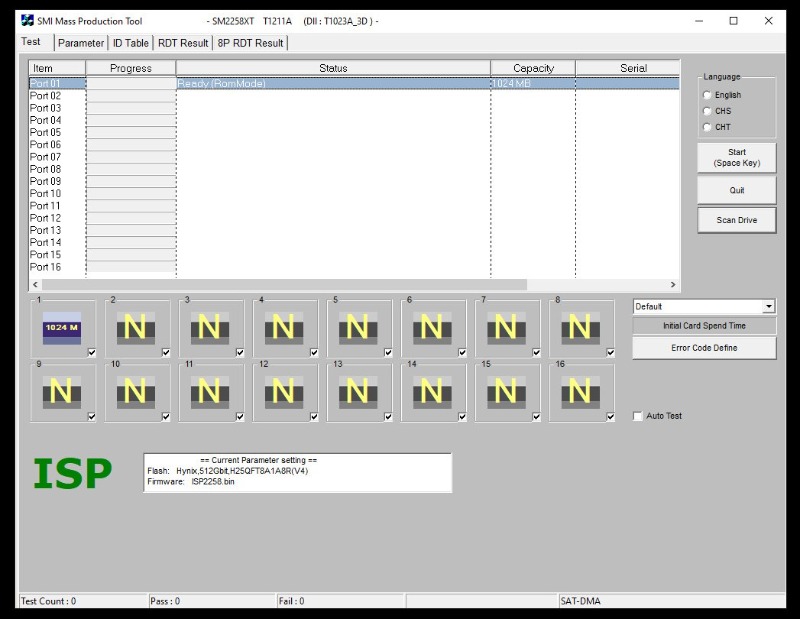
Launch MPTool: Open the SMI MPTool (SM2258XT) application.
Initialize: Click Scan Drive to detect your SSD.
Access Parameters: Navigate to the Parameter tab. If prompted for a password, press the Spacebar twice.
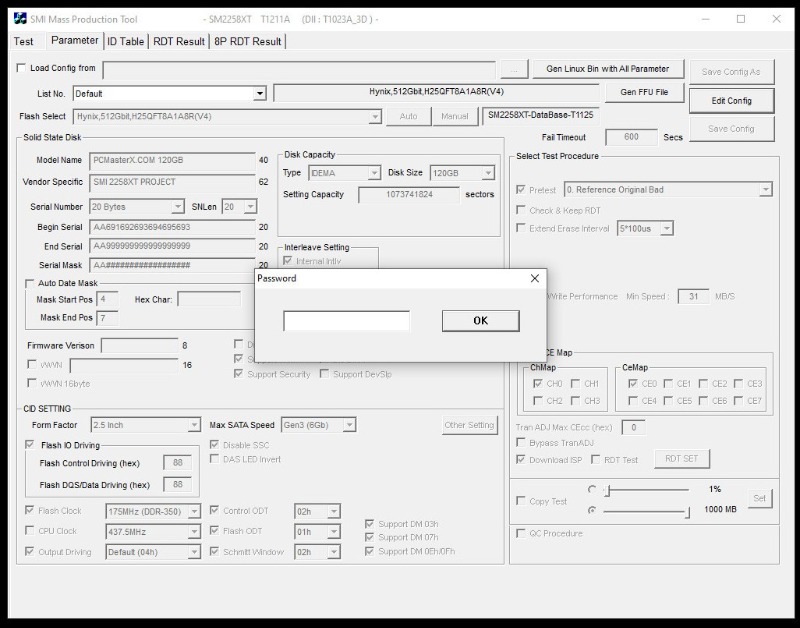
Configure Firmware Settings:
Flash Select: Choose the exact memory type identified in Phase 2 (e.g., Hynix, 512Gbit, H25QFT8A1A8R).
Capacity: Set the drive size to match your hardware.
Customization: You may edit the Model Name or Serial Number fields here if desired.
Save: Click Save and return to the main Test dashboard.
Phase 4: Executing the Flash
Start Flashing: Click Start (Space Key). to begin the process. When ssd flashing stops at (Not ISP Mode (7B) To continue the process, remove the bridge jumper from the ssd without turning off the ssd from the power supply. Then click on scan drive to load your ssd and then on Click on Start (Space Key).
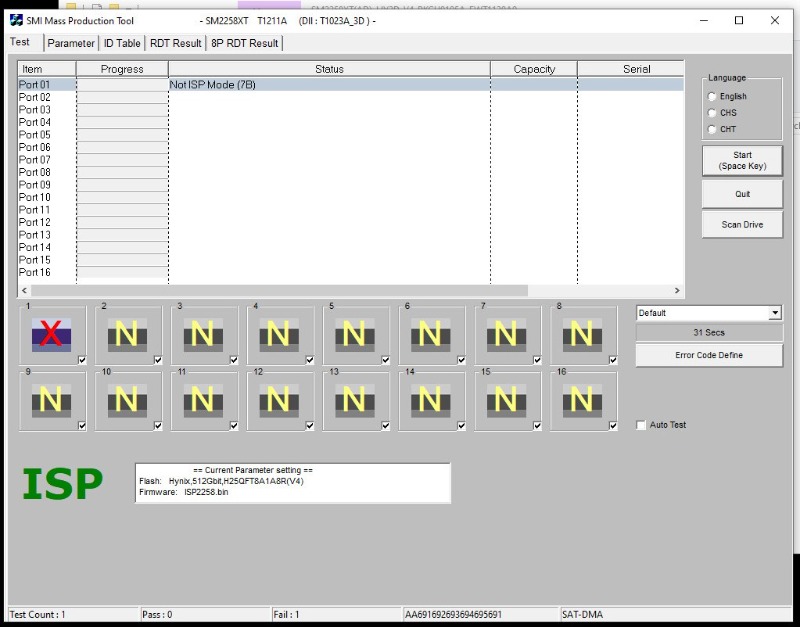
Confirm success: When the process is complete, your SSD will be successfully flashed.
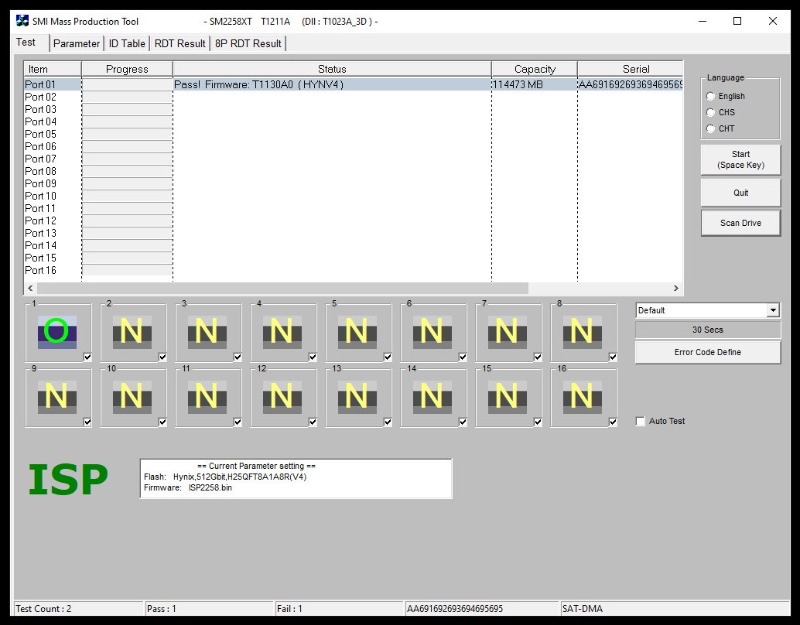
Finalize Hardware: Close the software, disconnect the SSD, and remove the bridge jumper.
Phase 5: Initialization
Reconnect: Plug the SSD back into your computer normally.
Format: Use Disk Management to initialize the disk (GPT/MBR) and create a new partition. Your SSD is now repaired and ready for use.
Necessary links ...
--------------
smi_flash_id-v0.564a
https://www.usbdev.ru/files/smi/smiflashid/
--------------
SM2258XT(AD)_HY3D-V4_PKGU0105A_FWT1130A0
https://www.usbdev.ru/files/smi/sm2258xtmptool/