
This is a comprehensive, step-by-step guide for disassembling the PlayStation 4 Fat console CUH-1200A or B Series.
Does your PlayStation 4 sound like a jet engine taking off when you launch a game? Loud fan noise and overheating are clear signs that dust has built up inside the console, and the factory thermal paste has dried out.
In this comprehensive guide, we will walk you through the entire process of disassembling, cleaning, and servicing a PS4 FAT console (CUH-1200A and CUH-1200B series) to get it running quietly and smoothly again. (CUH-1216A and CUH-1216B series)
How to open the PS4 Fat, clean the dust, replace the thermal paste with this video:
🛠️ Required Tools and Materials
Before you begin, make sure you have the following ready:
- TR8 Torx Security screwdriver (the one with the small hole in the center)
- Standard Phillips screwdriver
- 90%+ Isopropyl alcohol and cotton swabs (Q-tips)
- High-quality fresh thermal paste (e.g., Arctic MX-4, Noctua NT-H1)
🛑 Phase 1: Removing Covers and the Hard Drive (HDD)
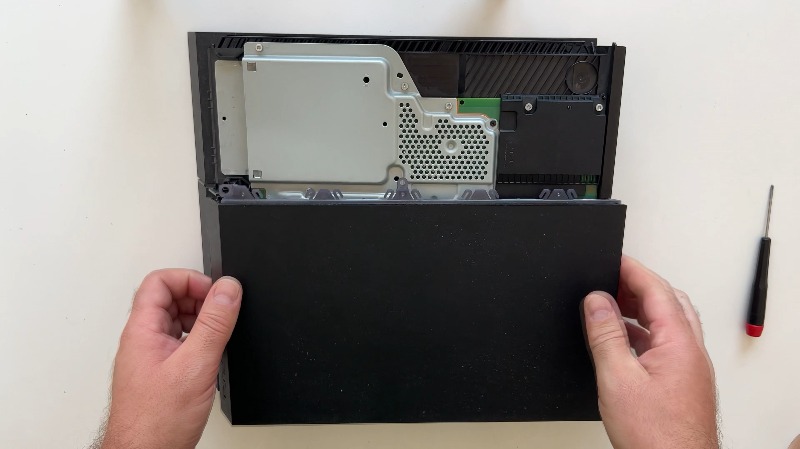
- Remove Security Stickers: On the back of the console, right above the ports, peel off the two stickers revealing two Torx security screws. Unscrew them.
- Slide off the HDD Cover: Lay the console flat. Push the matte top-left panel (the hard drive cover) outward. It will click and slide right off.
- Remove the Hard Drive: Use your Phillips screwdriver to remove the single large screw marked with the PlayStation symbols holding the HDD bracket. Pull the hard drive out.
- Remove the Second Top Cover Piece: Unscrew the remaining two Torx screws holding the second part of the top cover. Push the panel outward until it clicks and slides off.
🔌 Phase 2: Removing the Metal Shield and Power Supply (PSU)
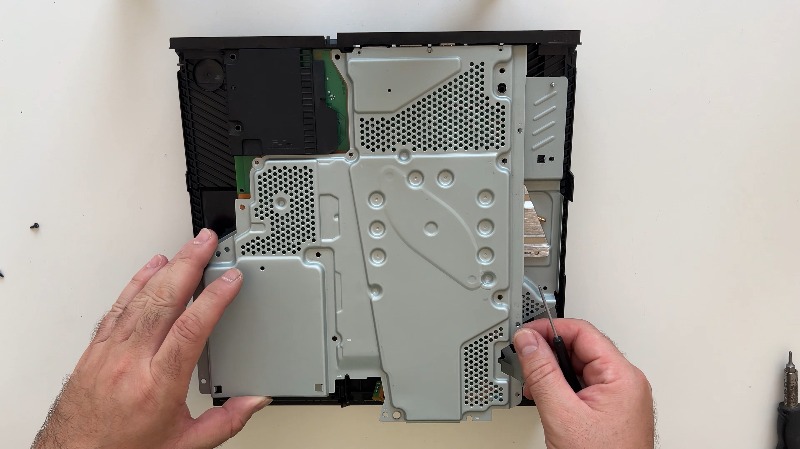
- Remove the Top Shield Plate: Unscrew all the remaining Phillips and Torx screws securing the large metal shield plate.
- Watch the Thermal Pads: As you lift the small and large metal plates, pay close attention to the thermal pads on the memory chips so they don't shift or get lost.
- Disconnect the Power Ribbon: Lift the small plastic plate that sits over the power supply nut. Locate the thin, delicate ribbon cable running from the front power button board to the main board. Carefully unplug it to avoid tearing the fragile traces.
- Remove the Bottom Casing: Flip the console upside down. Pry up the corners of the bottom casing from the back, then slide it forward and off.
- Take out the Power Supply: Remove the two Phillips screws securing the metal shield to the power supply and take the shield off. Remove the three Torx screws holding the power supply itself. Unplug the small 4-pin connector cable, gently use a screwdriver to pry the PSU out of its tray, and lift it clear. Don't lose the nut for the power supply screw!
🎛️ Phase 3: Motherboard Removal and Fan Cleaning
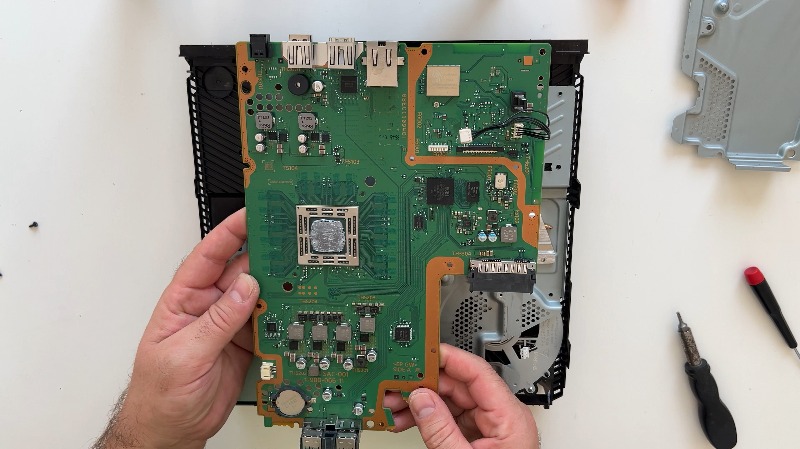
- Disconnect the Optical Drive: Turn the console upside down. Gently unplug the optical drive ribbon cables and the antenna wire from the motherboard.
- Remove the APU Clamp: Flip the console over again. You will see a small metal bracket clamp held by two spring screws. Loosen these screws evenly and alternately (a few turns on one, then a few turns on the other) to prevent uneven pressure on the chip. Remove the clamp and its plastic spacer.
- Lift the Motherboard: Disconnect the fan cable, remove the plastic power button piece, and carefully lift the motherboard out of the chassis. You now have access to the heatsink block and the fan.
- Clean the Heatsink and Fan: Unscrew the three screws holding the heatsink and lower metal shield to the plastic housing. Remove the heatsink and clean off the old dried paste using Q-tips dipped in isopropyl alcohol until the surface looks like a mirror. Unscrew the single screw holding the cooling fan, take it out to clean all the dust off, and then screw it back into place.
🧴 Phase 4: Applying New Thermal Paste and Reassembly
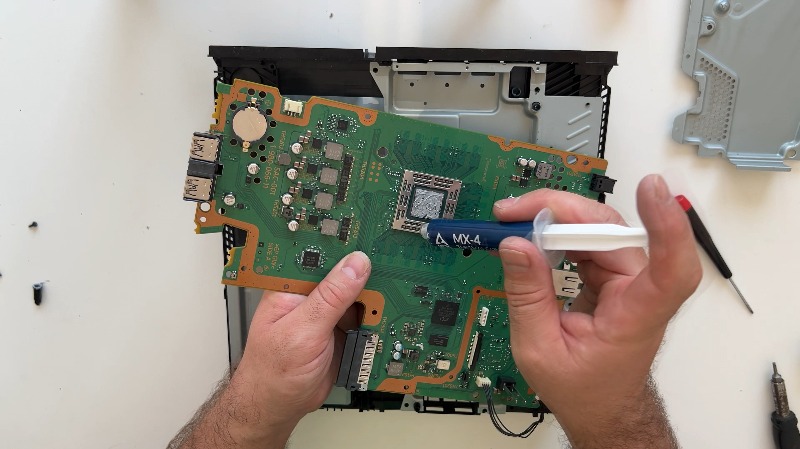
- Clean the APU Chip: Use cotton swabs soaked in isopropyl alcohol to completely clean the old, dried-out thermal paste off the shiny APU chip on the motherboard.
- Apply Fresh Thermal Paste: Place a small pea-sized or X-shaped drop of new thermal paste directly onto the center of the clean APU chip (or spread it in a thin, even layer across the surface).
- Reseat the Motherboard: Carefully lower the motherboard back into the chassis, making absolutely sure that no flat ribbon cables get trapped underneath it. Reconnect the fan cable.
- Install the APU Clamp: Put the plastic spacer and the metal clamp back over the chip. Tighten the two spring screws alternately—a few turns at a time—to ensure perfectly equal pressure distribution.
- Final Reassembly: Reverse the disassembly steps to put everything back together. Double-check that all thermal pads are safely in place (if they aren't sticking firmly to the metal shield, place them directly onto the memory chips). Reattach the shields, plug all ribbon cables and the antenna back in, lower the power supply back down, secure the hard drive, and snap the outer casings shut.
Once fully reassembled, your PlayStation 4 FAT will run dramatically cooler and quieter, extending the lifespan of your console and ensuring a much better gaming experience!